Dreamy Effect
Give your photos a dreamy like effect with some simple filter effects.
– Start by opening up an image in Photoshop, any photo should work. I’m going to use this landscape found in Google

– Now press D to reset colors to Black as Foreground and White as Background and now press X to switch them. Go to Select -> Color Range and use the values below
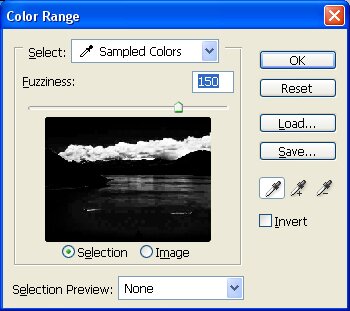
– Some parts of your image should now be selected as shown below
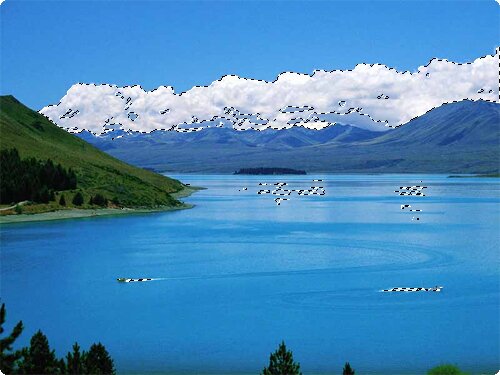
– Still with the selection on, go to Select -> Feather and enter from 15 to 35 in the text field depending in your image, I’m using 20, and you should now have something like this
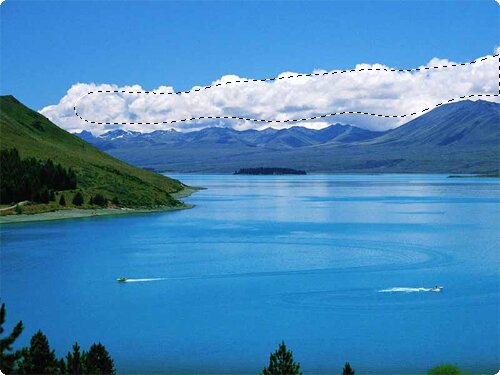
– Create a new layer and fill your selection with white
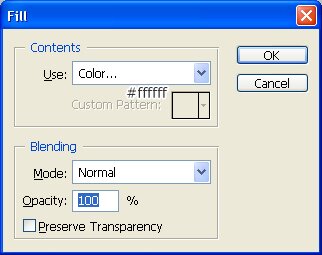
– And your image should look like this

– Now change the blending options to Overlay or Soft Light and you’re done